In this article
You land, open your phone, and there is no mobile data. Before you buy another plan, work through a few checks. Most problems come from one of four places: the phone settings, the plan, the phone itself or the card.
These checks apply to a travel eSIM plan on the Flipesim physical eSIM card. Menu names change by phone brand and software version, so use the Settings search box if you cannot find an option.
Start with the simple checks
Do these first. They take about two minutes.
- Turn airplane mode on, wait ten seconds, then turn it off.
- Restart the phone.
- Make sure the travel profile is turned on in the Flipesim app, or in the SIM Toolkit menu.
- In your phone settings, choose the travel line for mobile data.
- Turn on data roaming for the travel line, if the provider's instructions tell you to. Turn it off on your home line.
Check the plan
The plan comes from your eSIM provider, so the provider can answer questions about it. Check these points in the provider's app or email:
- The plan covers the country where you are.
- The plan has started, and it has not ended.
- You still have data left.
- You typed any extra settings that the provider asked for, exactly as written.
Installing a profile and starting its validity are not always the same step. Read the provider's rules on when the plan begins.
Check the phone
A phone that is locked to one mobile company may refuse another provider's plan. Ask your home company if the phone is unlocked before you travel. Also check that the phone is on the supported list for the card: it needs a SIM slot, no built-in eSIM, and no Xiaomi, Redmi or Poco HyperOS software. If you are unsure, read how to check if your phone supports eSIM.
Check the card
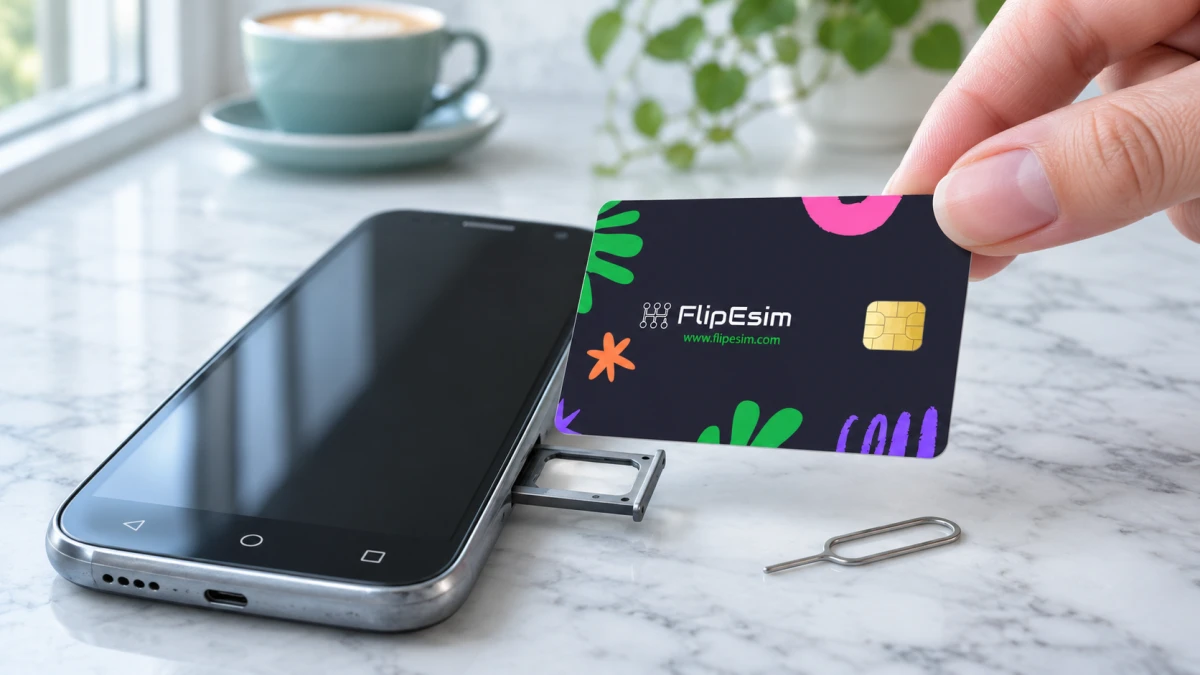
- Take the card out and put it back in the SIM slot, with the gold chip facing the right way for your tray.
- Check that you broke out the right size: Mini, Micro or Nano.
- Open the Flipesim app and check that the profile is listed on the card.
- On an iPhone, check that you loaded the profile with the USB-C card reader.
Who to ask for help
Ask the eSIM provider about the plan, coverage and data. Ask Flipesim about the card, the reader and the app. You can find answers on the Flipesim FAQ, or write to support@flipesim.com.
It also helps to prepare before you leave. Load the plan on Wi-Fi at home and keep the provider's support contact somewhere you can read it offline.
Quick questions
Why do I have a profile but no data?
The profile may not be turned on, the plan may not cover the country, or the plan may not have started. Check these three points first.
Can I fix it without the app?
You can turn a profile on from the SIM Toolkit menu in your phone settings. You still need the app to load a new profile.
Should I buy a new plan right away?
Not yet. First check the settings, the plan details and the card, then ask the provider. A new plan will not fix a phone setting.
Explore the Flipesim Physical eSIM Card
Store downloadable eSIM profiles on a removable card. Check your phone, plan and installation method with Flipesim before buying. iPhone setup requires a card reader.