In this article
You've found a travel data plan, and you're ready to buy. But does your phone support eSIM? The quickest check is to dial *#06# and look for EID, a 32-digit identifier that confirms your phone has built-in eSIM hardware.
An eSIM is a digital SIM that lets you add a mobile plan without inserting a separate SIM for that plan. Finding an EID answers the hardware question, but it doesn't tell you whether a carrier lock will prevent you from using another provider.
Do this check before paying for a plan. The quick route takes about 30 seconds; if your menus need a little detective work, use the settings routes below.
What you need before checking your phone
You can check for built-in eSIM using your phone's dialler or Settings app, without buying a plan first.
- Your phone, with access to its dialler and settings.
- The instructions below for your phone's operating system.
- A moment to check for carrier restrictions before making a purchase.
Menu names and positions vary by brand and software version. If a path doesn't match your screen, use the Settings search box for EID or eSIM. Skip guessing from a phone's appearance: the identifier and settings give you something concrete to check.
Does my phone support eSIM? Follow these steps
An EID confirms built-in eSIM hardware; the SIM settings provide another place to check for the option to add a plan.
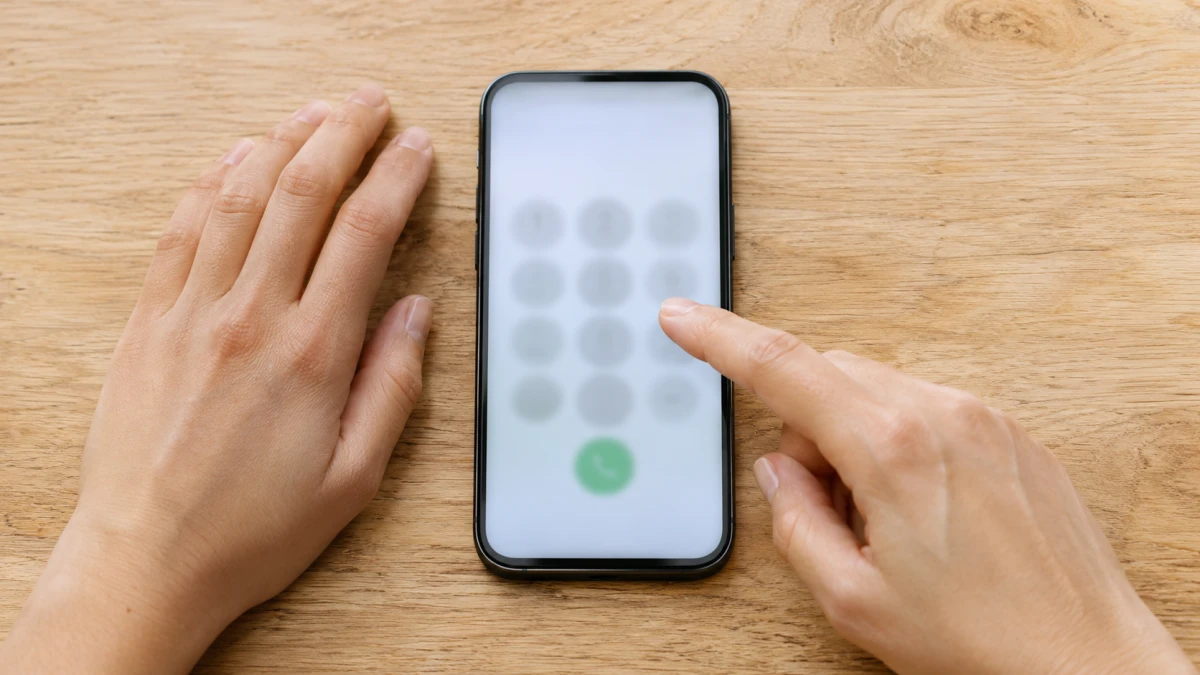
Start with the dialler. Open the phone keypad and enter *#06#. Look through the identifiers displayed on screen for a field labelled EID. If you see that 32-digit identifier, your phone has eSIM hardware.
On an iPhone, check About. Open Settings > General > About, then scroll to EID. You can also open Settings > Cellular, sometimes called Mobile Service, and look for Add eSIM.
On Android, check the phone information. Open Settings > About phone, then look under Status, SIM status or IMEI information for EID. Another route is Settings > Network and internet > SIMs, where supported phones show Add SIM or Download a SIM.
Read the result before buying. An EID means the hardware is present. If you find neither an EID nor an option to add an eSIM after checking the relevant menus, your phone most likely has no built-in eSIM.
You don't need to scan a provider's code just to answer the compatibility question. Find the identifier first, then decide how to add a plan.
An EID doesn't settle the carrier-lock question
A phone can have built-in eSIM hardware and still refuse another provider's plan because it is carrier-locked.
Before buying, ask your home network to confirm that your phone is free of a carrier lock and can accept another provider's plan. Keep that question separate from whether the phone has an EID: they answer different things.
Say you're preparing for a trip and find an EID immediately. That's useful progress, but check the carrier restriction before moving on to payment. Once you've chosen a suitable travel plan, installing it on Wi-Fi before departure is a sensible preparation step.
If the check goes wrong, try these fixes
A missing menu or an unhelpful dialler result calls for another settings check before you decide your phone has no eSIM.
- The dialler doesn't show an EID: open the About screen using the route above. Don't make the decision from the dialler result alone.
- The menu names don't match: search Settings for EID or eSIM. Brand and software differences can put the same information somewhere else.
- You see an EID but can't find Add eSIM: the EID still confirms eSIM hardware. Use Settings search to find the relevant SIM controls.
- A provider's plan is refused: check the carrier-lock question with your home network and contact the eSIM provider about its plan. An EID alone doesn't promise that installation will succeed.
- Neither check finds anything: no EID and no option to add an eSIM means the phone most likely lacks built-in eSIM. Check for a physical SIM slot before considering the card below.
No built-in eSIM? Check whether the card fits your situation
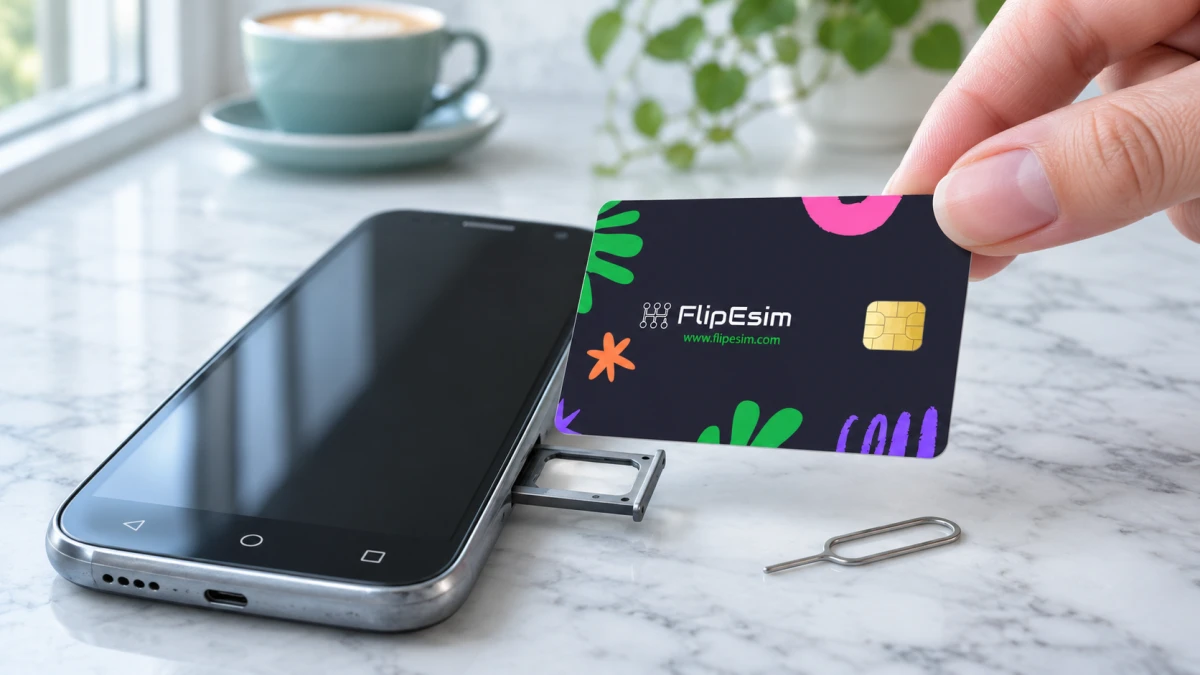
The Flipesim physical eSIM card is for phones with a physical SIM slot but no built-in eSIM; phones running Xiaomi, Redmi or Poco HyperOS are not supported.
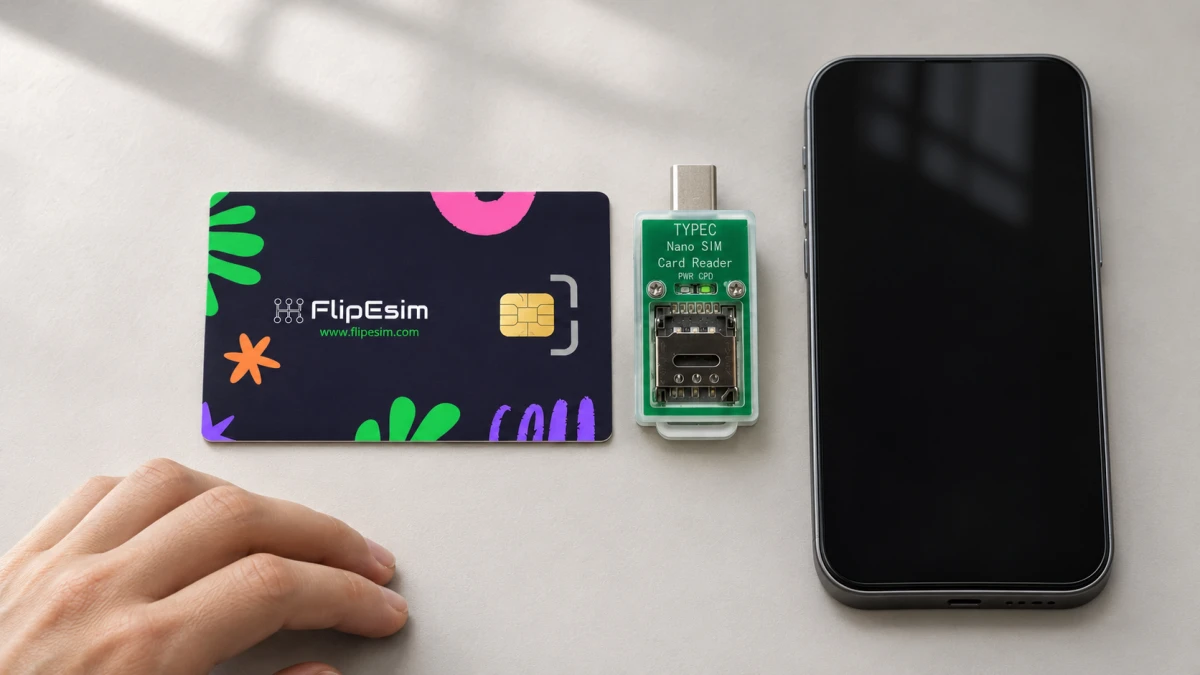
If your phone already supports eSIM, you don't need the card. A phone without a physical SIM slot also falls outside the card's intended use.
The card uses eUICC technology, which lets a SIM store downloadable mobile-plan information. That information is called a profile. The card stores up to 10 eSIM profiles and allows unlimited profile downloads.
Flipesim sells the card and a USB-C reader, not data plans or phone numbers. You buy a plan from the eSIM provider you choose; that provider sets its prices and coverage. There is no subscription or lock-in with the card.
For setup, insert the card into the phone or place it in the reader, open the free Flipesim app, tap plus, and scan the provider's QR code or enter its details by hand. Then turn the profile on. iPhones need the USB-C card reader to load profiles; most supported Android phones can install them without it.
Your next step: open your phone's settings and check for EID, then use the Flipesim FAQ if you're considering the card.
Quick questions
Does an EID mean my phone supports eSIM?
An EID confirms that your phone has built-in eSIM hardware. It doesn't confirm that the phone is free of a carrier lock, so check that separately before buying another provider's plan.
What if I can't find EID in my settings?
Search Settings for EID or eSIM, because menu names vary by brand and software version. If you find neither an EID nor an option to add an eSIM, your phone most likely has no built-in eSIM.
Do I need the card if my phone already has eSIM?
No. The card is intended for phones with a physical SIM slot and no built-in eSIM, subject to the HyperOS exclusion.
Can I keep my home SIM for verification codes?
On dual-SIM phones, your home SIM can stay in for calls and verification codes while you use another profile for data.
Explore the Flipesim Physical eSIM Card
Store downloadable eSIM profiles on a removable card. Check your phone, plan and installation method with Flipesim before buying. iPhone setup requires a card reader.