In this article
You've found a travel data plan, but your phone has nowhere to add it. Does that mean you need a new phone?
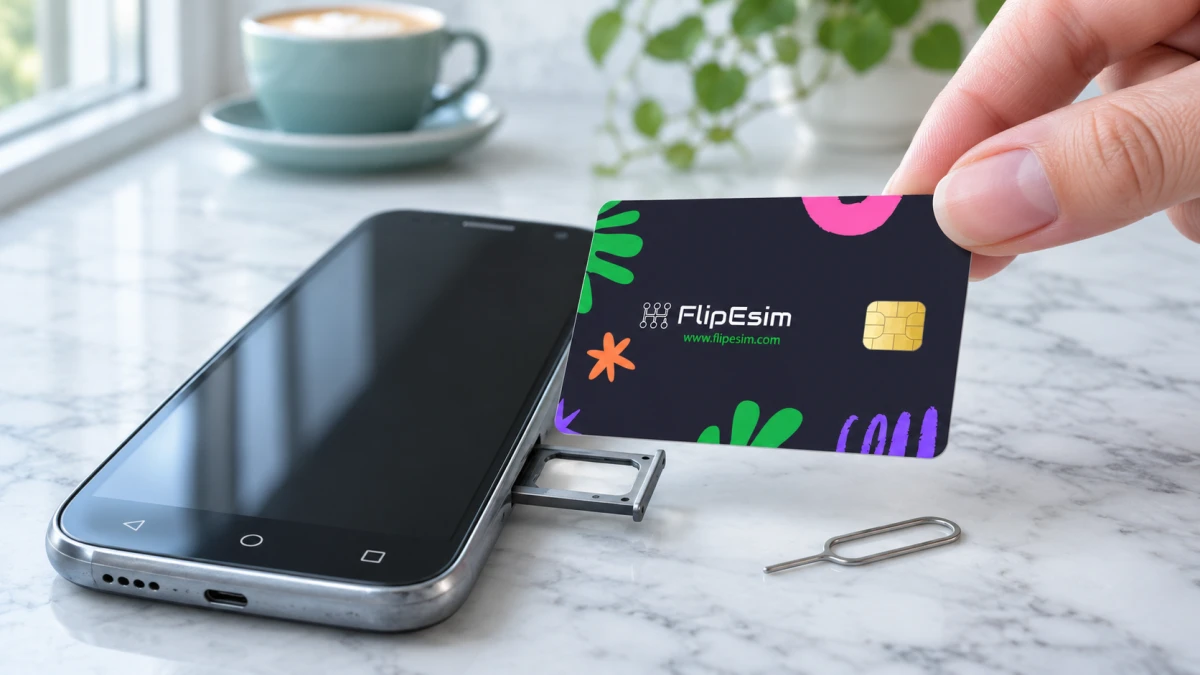
You can add eSIM to a phone that doesn't support it using a physical eSIM card, provided your phone is compatible and has a SIM slot. An eSIM is a digital SIM that lets you install a provider's plan. A physical eSIM card brings that capability to a removable card instead of relying on hardware built into the phone.
Check the limits first: phones running Xiaomi, Redmi or Poco HyperOS aren't supported. If your phone already has built-in eSIM, you don't need the card.
Check whether your phone actually needs the card
Look for an EID before buying anything, because your phone may already have built-in eSIM.
An EID is a 32-digit identifier for eSIM hardware. Dial *#06# and look for EID in the list, or check your phone's About screen.
- On iPhone: open Settings, General, then About and scroll to EID. Settings, Cellular or Mobile Service may also show Add eSIM.
- On Android: open Settings, About phone, then Status, SIM status or IMEI information and look for EID. Under Network and internet, SIMs may show Add SIM or Download a SIM.
Menu names and positions vary by brand and software version. If those paths don't match your screen, use the Settings search box for EID or eSIM.
An EID means your phone has eSIM hardware. It doesn't mean the phone is unlocked, so confirm that separately before buying another provider's plan.
No EID and no Add eSIM option means your phone most likely lacks built-in eSIM. That's the situation the card is for, provided there's a physical SIM slot and the HyperOS exclusion doesn't apply.
What you need to add eSIM to a non eSIM phone
You'll need a compatible phone, the card and a plan purchased separately from an eSIM provider.
The Flipesim physical eSIM card uses eUICC technology, which lets a SIM store and manage downloadable plans. Each downloaded set of SIM details is called a profile. The card stores up to 10 profiles and allows unlimited profile downloads.
Here's your preparation list:
- A phone with a SIM slot, no built-in eSIM and no excluded HyperOS software.
- The card, which fits Mini, Micro and Nano SIM slots.
- The free Flipesim app.
- Your eSIM provider's QR code or manual installation details.
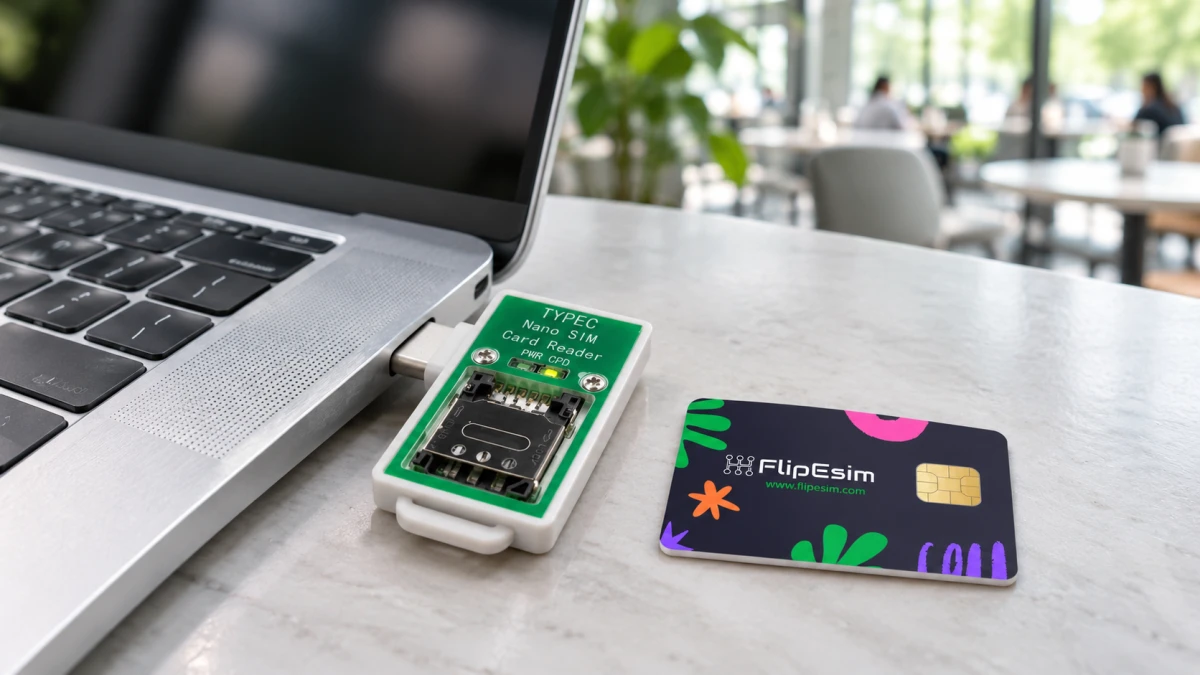
- A USB-C card reader if you're loading profiles for an iPhone. Most supported Android phones can install profiles without it.
- Wi-Fi for installing your travel plan before departure.
Flipesim sells the card and reader, not data plans or phone numbers. You buy your plan from an eSIM provider, and that provider supplies the coverage and pricing information. There's no Flipesim subscription or lock-in.
Load your plan, then turn it on
Setup follows the same basic sequence: insert the card, add your provider's profile and turn that profile on.
Do this on Wi-Fi before you leave. Say you arrive late and need your booking address: having setup out of the way leaves you with less to sort out at the airport.
- Insert the card. Put it into your phone's SIM slot, or into the reader when using that loading method. For an iPhone, use the reader to load profiles. If your phone has dual SIM slots, your home SIM can stay in for calls and verification codes.
- Open the app and find plus. Open the free Flipesim app. Look for the plus control and tap it to begin adding a profile. Don't wait for an Add eSIM button in your phone's native settings: you're loading the profile onto the card through the app.
- Add your provider's details. Scan the QR code supplied by your eSIM provider, or enter its installation details by hand. The on-screen task here is adding a profile using those details. Keep them accessible before starting so you aren't searching through booking emails halfway through setup.
- Turn the profile on. Once the profile has been added, turn it on in the app. Use the profile you intend to use for this trip. The card can hold several profiles, so storing a plan and selecting it for use are separate actions.
- Put the card in the phone and go online. If you loaded the profile using the reader, move the card into the phone first. Check that you can go online before putting your setup details away.
Later, you can switch profiles in the app or through the SIM Toolkit, also called STK, menu in your phone's settings. SIM Toolkit is a menu for accessing functions on the SIM; it lets you switch profiles without the app.
If it goes wrong, check the sticking point
Start with the part of setup that failed: phone compatibility, adding the profile or getting online.
You can't find Add eSIM in Settings
A missing Add eSIM option is expected on a phone without built-in eSIM. Check for an EID using the methods above, then use the app's plus control to load the card.
You can't load a profile
Check the HyperOS exclusion and your loading method first. An iPhone needs the reader; most supported Android phones can load profiles without one. If scanning isn't working, use the provider's manual details instead.
The profile is loaded, but you can't get online
Check that the intended profile is turned on and that the card is back in the phone if you used the reader. Confirm the phone is unlocked, then check the plan details with your eSIM provider. Keep that provider's support contact handy because coverage and plan questions belong with them.
Your next step is to check the Flipesim setup and compatibility FAQ before buying the card.
Quick questions
Can I add eSIM to any phone with a SIM slot?
A SIM slot alone doesn't establish compatibility. The card is intended for phones without built-in eSIM, and phones running Xiaomi, Redmi or Poco HyperOS aren't supported.
Do I need a reader for an iPhone?
iPhones need the USB-C card reader to load profiles onto the card. Most supported Android phones can install profiles without it.
Can I keep my home SIM for verification codes?
On a dual-SIM phone, your home SIM can stay in for calls and verification codes alongside the card.
Does the card come with a data plan?
Flipesim doesn't sell data plans or phone numbers. You purchase a plan separately from your chosen eSIM provider, which supplies its coverage and pricing details.
Explore the Flipesim Physical eSIM Card
Store downloadable eSIM profiles on a removable card. Check your phone, plan and installation method with Flipesim before buying. iPhone setup requires a card reader.